AI Inpaint Online: Remove, Replace, and Add Objects from Photos
Brush a selected area to remove, replace, or add objects. AI inpainting edits only that region so the rest of the photo stays intact—no extra redraw or color shift. Try it online with free credits; no Photoshop required.
WHAT IS AI INPAINTING
What Is AI Inpainting for Images?
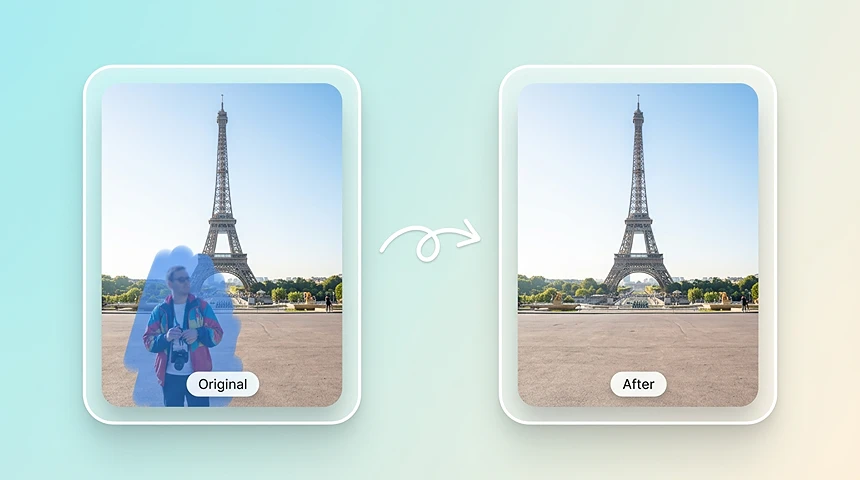
AI inpainting edits a selected area of an image by removing objects, replacing image regions, or adding new details. It reconstructs the masked area to match the surrounding background, lighting, texture, perspective, and edges, making the result look natural. Photo inpaint is the same workflow on everyday photos: select an area, then remove, replace, or add content while the rest of the image stays intact.
THREE WAYS TO EDIT
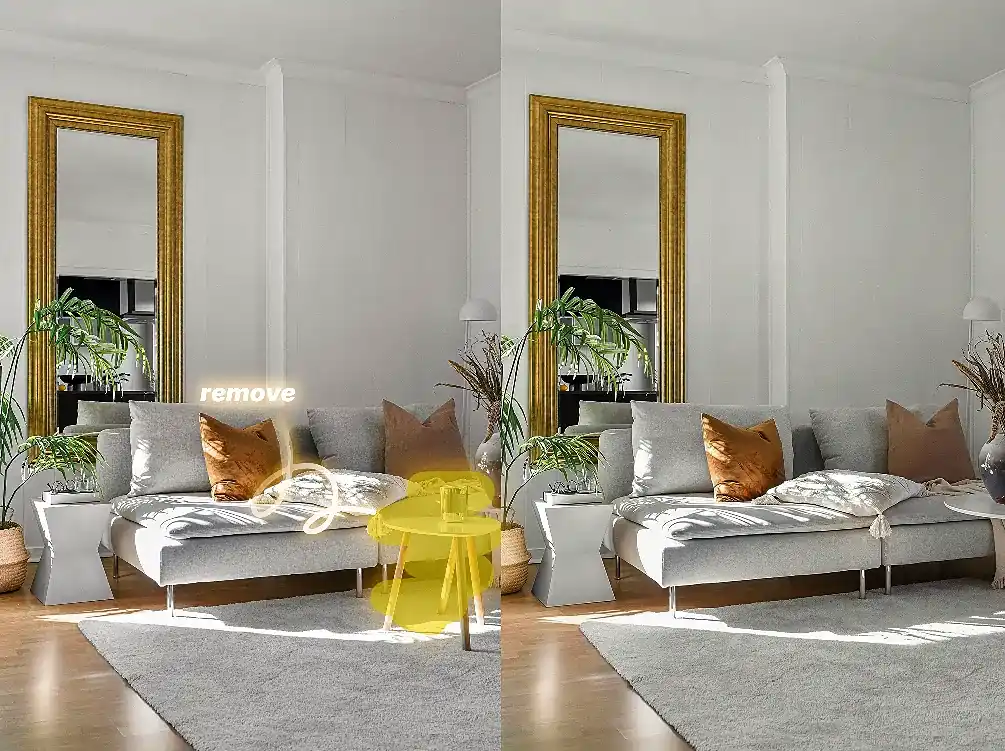
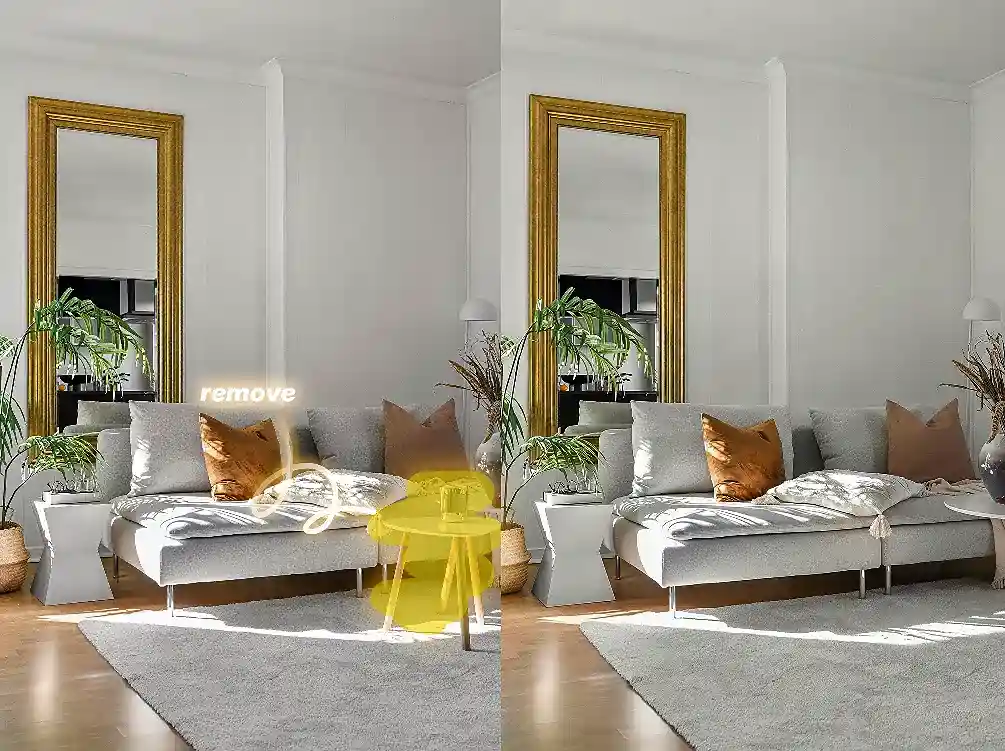
AI Inpainting to Remove Objects from Photos
Remove an object from a photo, or a person who walked into the frame, without rebuilding the whole image. Brush over people, tourists, clutter, wires, watermarks, and other unwanted objects, then let AI rebuild only that background with matching texture, lighting, and perspective.
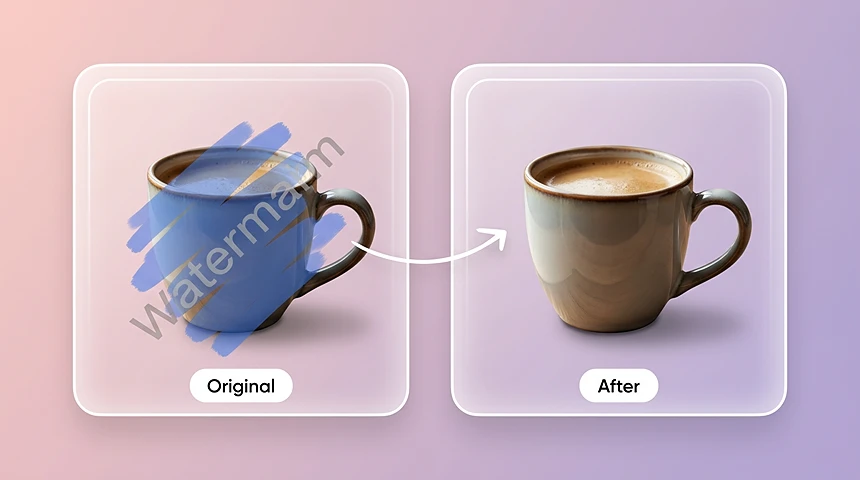
Remove watermarks
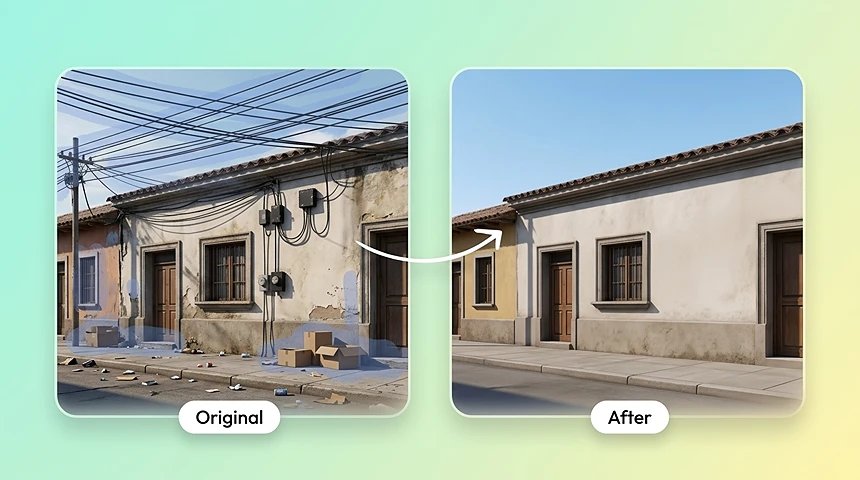
Remove wires & clutter
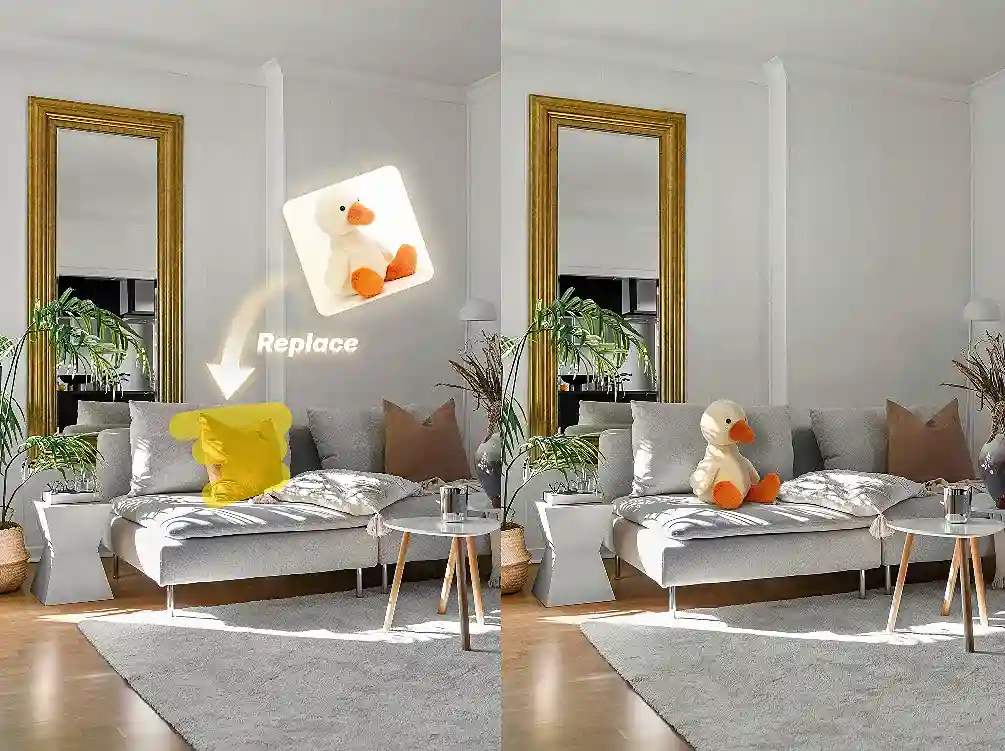
Image Inpainting to Replace Selected Areas
Select an area to replace a background, object, sign, or image detail. AI content-aware fill reconstructs the region while preserving the original scene structure, lighting, and perspective.
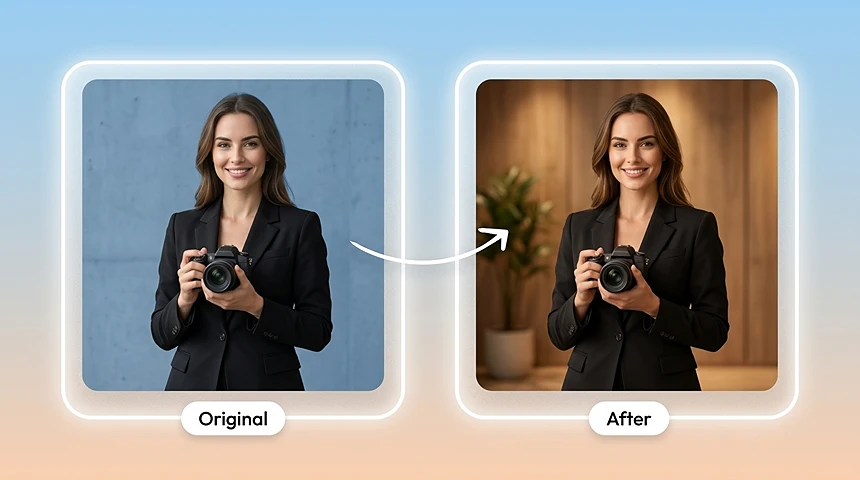
Replace backgrounds
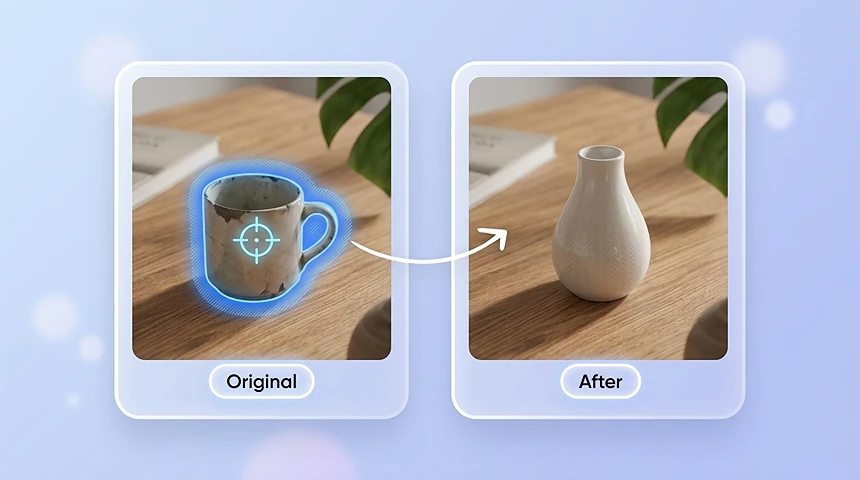
Replace objects
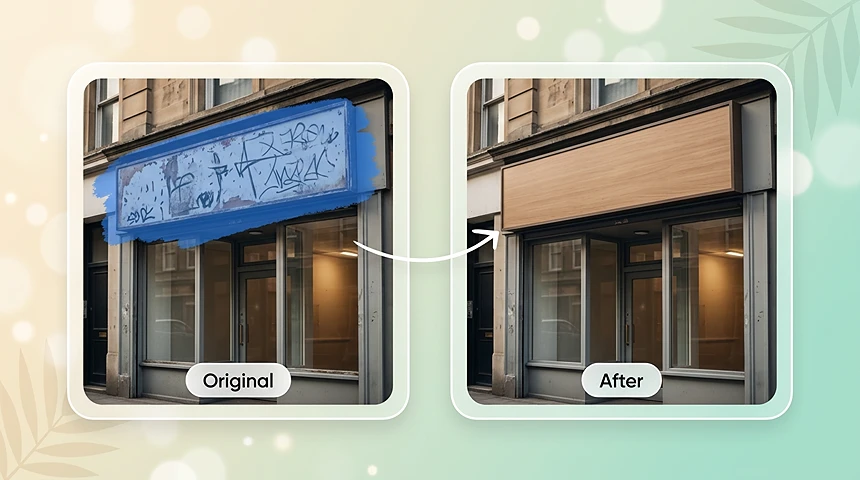
Replace text & signs
Use AI Inpainting to Add New Details
Brush an empty area, describe what you want to add, and generate new objects, props, textures, or creative details that fit the original image.
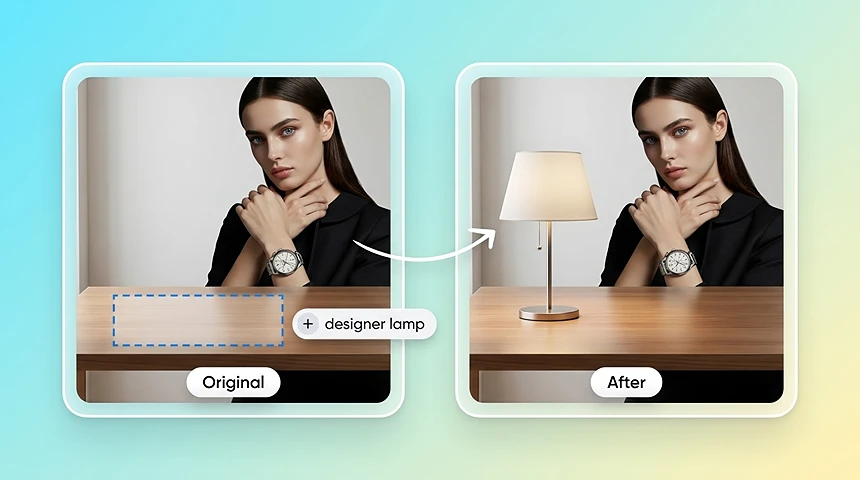
Add new objects
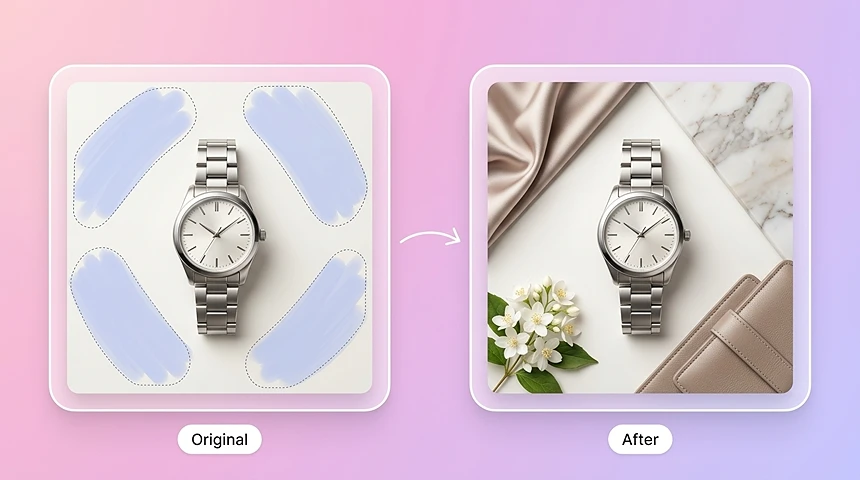
Add props & textures
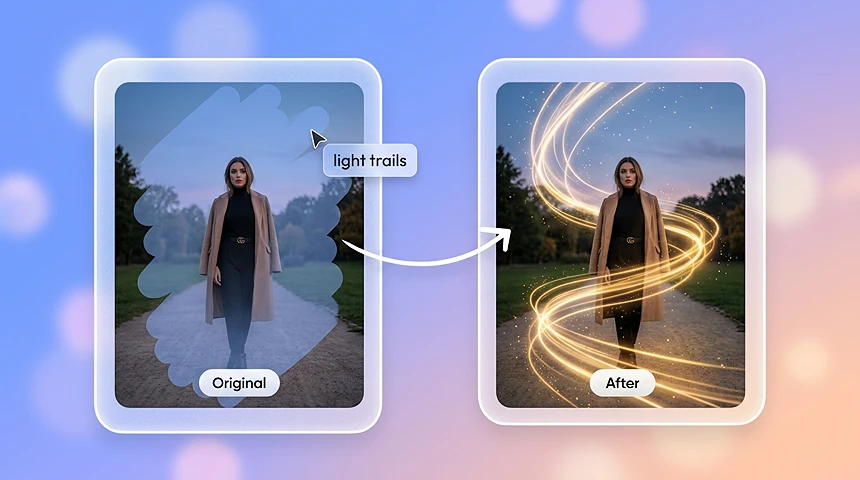
Add creative details
WHY CHOOSE AI INPAINTING
Why Choose AI Inpainting?
Built for edits that stay inside the selection.
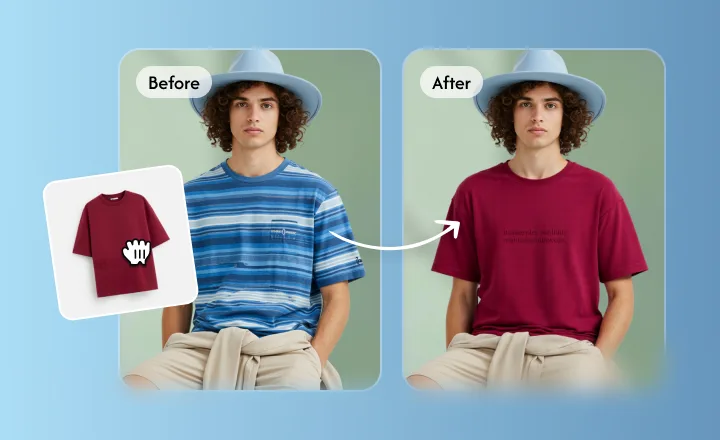
Only the brushed area changes; the rest of the photo stays as shot.
Edits Stay Inside the Selection
Brush the object or spot you want to change. AI inpainting fills that selection and leaves surrounding pixels alone, so you do not get a full-image redraw or an unexpected color shift.
AI PoweredSeamlessReal-time
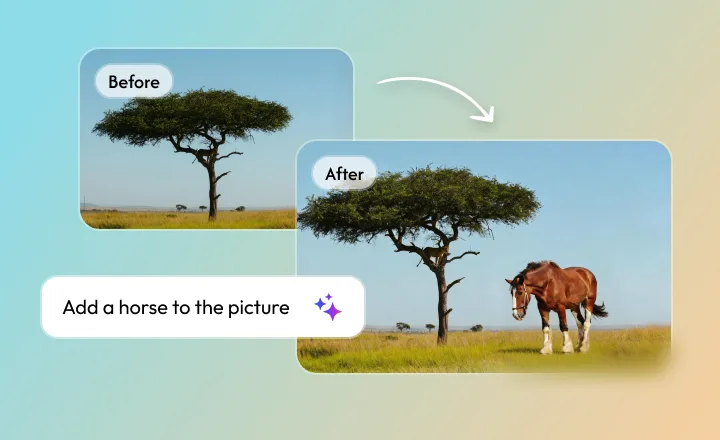
New content follows the original lighting, edges, and perspective.
Replace or Add Details That Match the Photo
Select an area, then describe what to replace or add. The fill uses the photo’s existing light, texture, and viewpoint so new details sit in the same scene instead of looking pasted on.
AI PoweredSeamlessReal-time
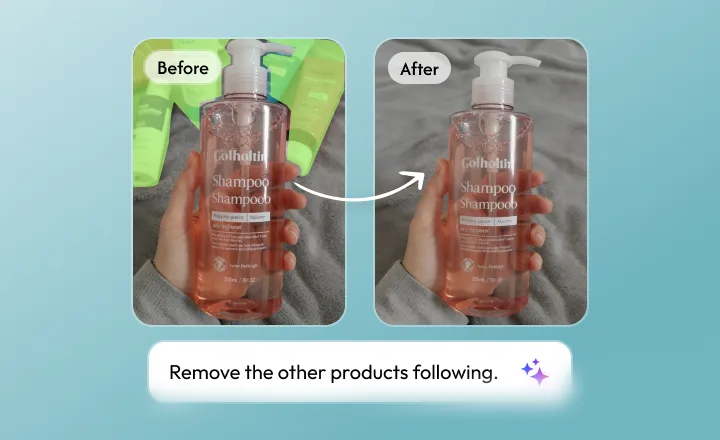
People, clutter, wires, and watermarks come out; the background fills back in.
Remove Unwanted Objects Without Leaving a Gap
Brush over the object and let AI rebuild the background from nearby texture and light. The goal is a clean export, not a visible hole or a hard edge around the mask.
AI PoweredSeamlessReal-time
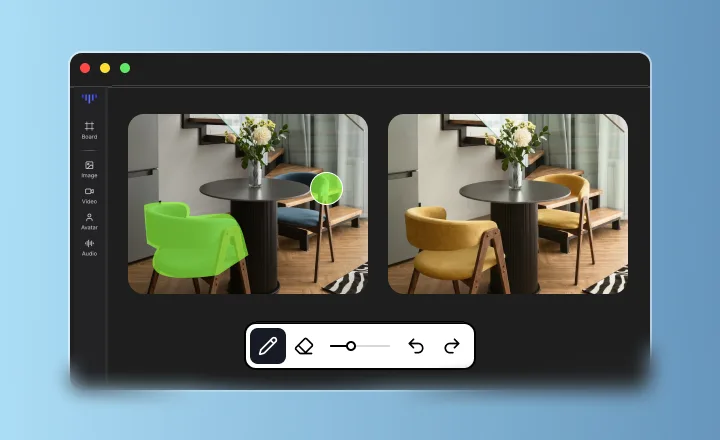
Skip the heavy software—get studio-quality shots instantly.
Online AI Inpaint Tool Without Complex Software
Stop wasting time with massive multi-GB installers. All the heavy lifting happens in the cloud. Just drag and drop your photo into the browser, and see professional results in seconds. Edit masterpieces on your phone or laptop, anytime, anywhere.
AI PoweredSeamlessReal-time
INDUSTRIES
Industries We Serve with AI Inpainting
Empowering professionals across every sector to create perfection.
1
E-Commerce
Create flawless product visuals that drive conversions.
2
Real Estate
Showcase properties in their best light without distractions.
3
Marketing Agencies
Deliver high-end campaign assets at record speed.
4
Film & Production
Accelerate post-production with AI-powered cleanup.
5
Content Creators
Maintain a polished feed with effortless editing tools.
6
Education
Create clear, distraction-free educational materials.
WORKFLOW
How to Use AI Inpainting
- 01
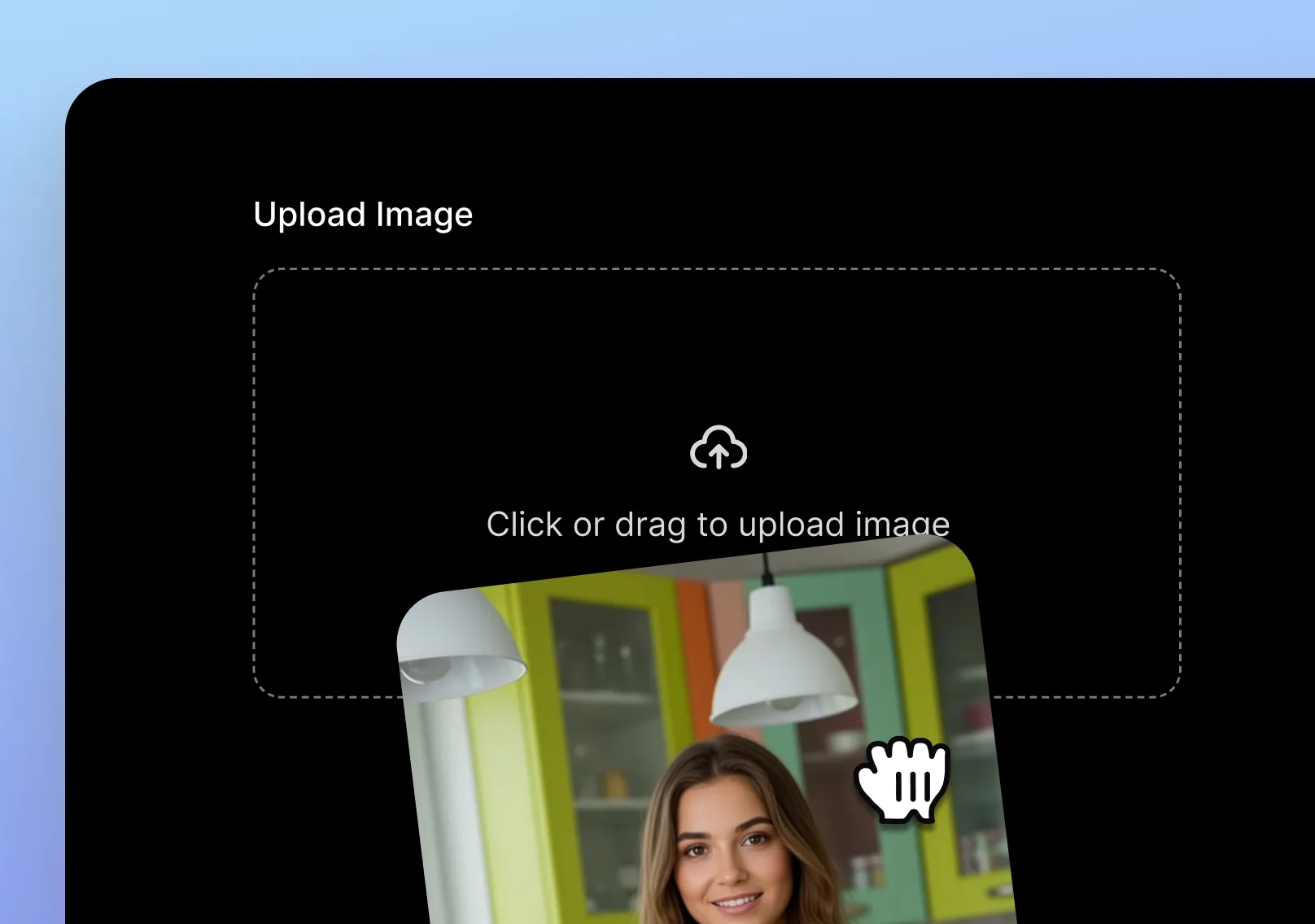
Upload Your Image
Upload from your device or select an existing image inside your Topview project.
- 02
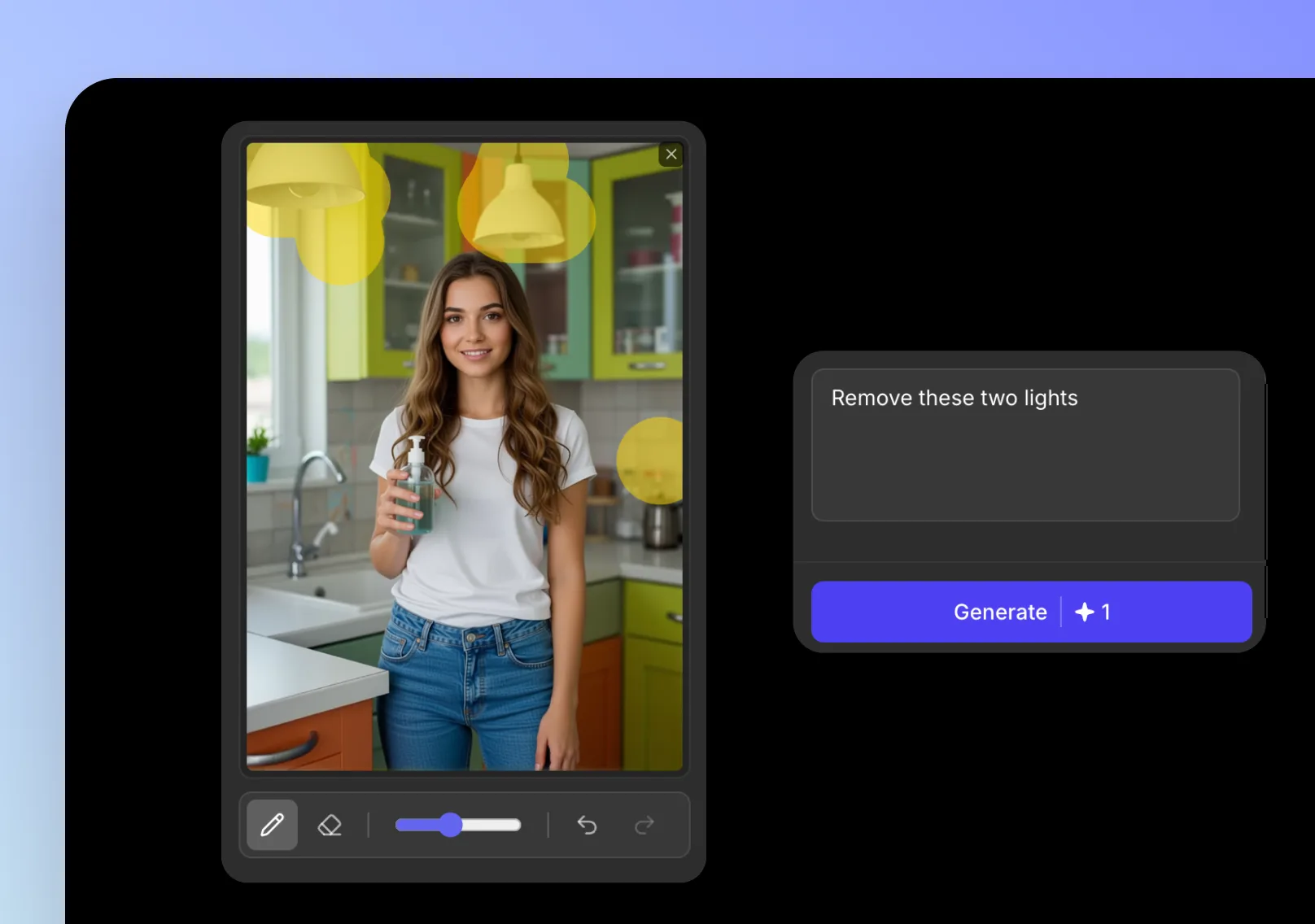
Paint the Area
Brush over the region you want to remove, replace, or add content to. Keep the mask tight for cleaner edges.
- 03
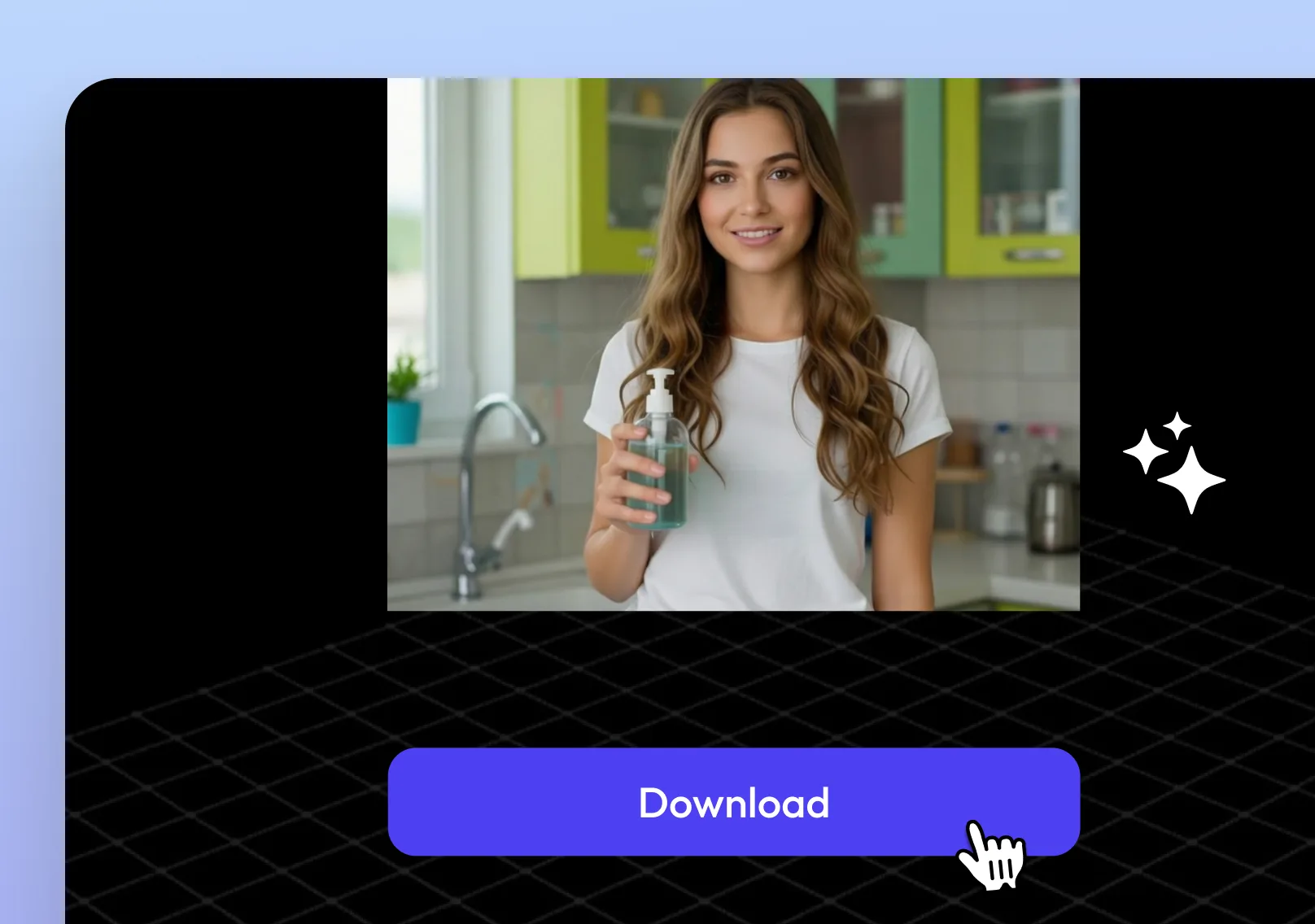
Prompt & Download
Describe the desired result, optionally upload up to 2 reference images, generate your edit, then export the final image.
More AI Tools
More AI Tools
Explore Topview's complete suite of AI tools for ads, avatars, video, image, and voice workflows.