Topview
    • MCP/Skill
    • Plugin
    • API
    • Pricing
    1. Home
    2. AI Video Generator
    3. Subtitle Generator

    AI Ads

    AI Video AgentAI Ads VideoAI Product VideoAI UGC VideoURL to Video

    AI Avatar

    AI Avatar GeneratorProduct AvatarDesign My AvatarAI Lip Sync

    AI Video

    AI Video GeneratorDrama StudioAI Video Body SwapAI Video UpscalerAI Video Watermark RemoverTikTok Watermark RemoverSora Watermark RemoverSubtitle RemoverAI Motion ControlAI Lip SyncURL to Video

    AI Image

    AI Image GeneratorAI Face SwapAI Image Character SwapAI Image UpscalerAI InpaintAI Image Text EditorPhoto Angle EditorAI RelightingAI Product PhotographyAI Virtual Try-OnAI Storyboard GeneratorExtract Color PaletteImage to Prompt

    AI Voice

    VoiceoverAI Voice CloningAI Music Generator

    3D

    3D World Generator3D Shot Composer

    Use Cases

    AdvertisingAffiliate MarketingEcommerceDTC BrandsAI Live Stream

    Resources

    BlogAffiliate ProgramLearning CenterAlternativeAPI

    Company

    Topview StudioPrivacy PolicyTerms
    Topview

    © 2026 TOPVIEW PTE. LTD.

    Singapore: 20 Collyer Quay #20-03, Singapore 049319
    Los Angeles: 15970 Los Serranos CC Dr #251, Chino Hills, CA 91709

    AI Subtitle Generator: Selling Lines People Can Read With Sound Off

    You have a hook line and a product still, but no clip with the words already on screen? Write the on-screen sentence into your prompt on Topview, generate from text, image, video, or audio, and if the line misses, change one sentence and generate again. Polish in Canvas.

    Ask Topview to

    Only a Selling Line? Ship a Clip With On-Screen Text Today

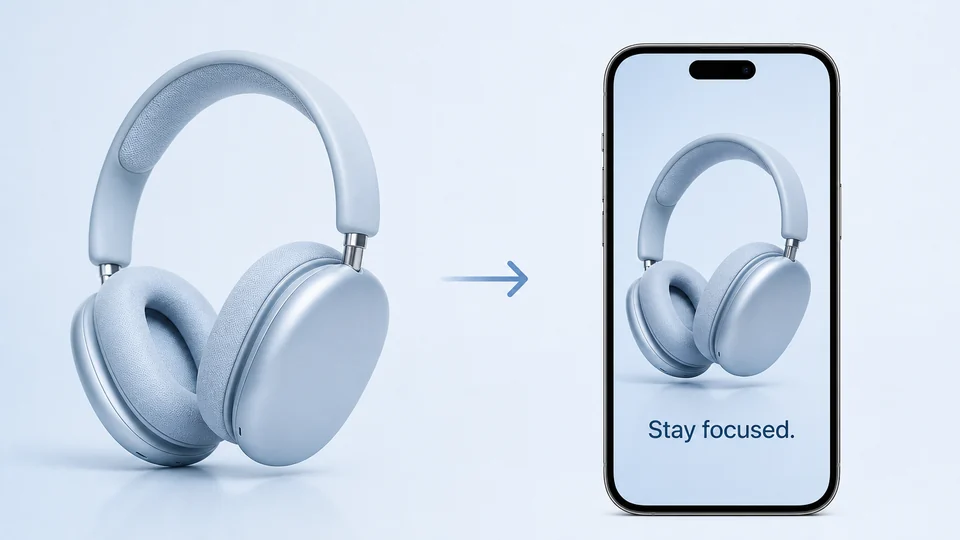
    Do not wait to film a finished cut, then auto-caption it in CapCut. Write the hook and selling point viewers should read on mute, attach a product still, reference clip, or audio if you have one, and set ratio, duration, and resolution. This AI video subtitle generator path is prompt-to-clip—not upload-and-transcribe.
    Stop the Scroll in 3 Seconds: AI Caption Generator for Video

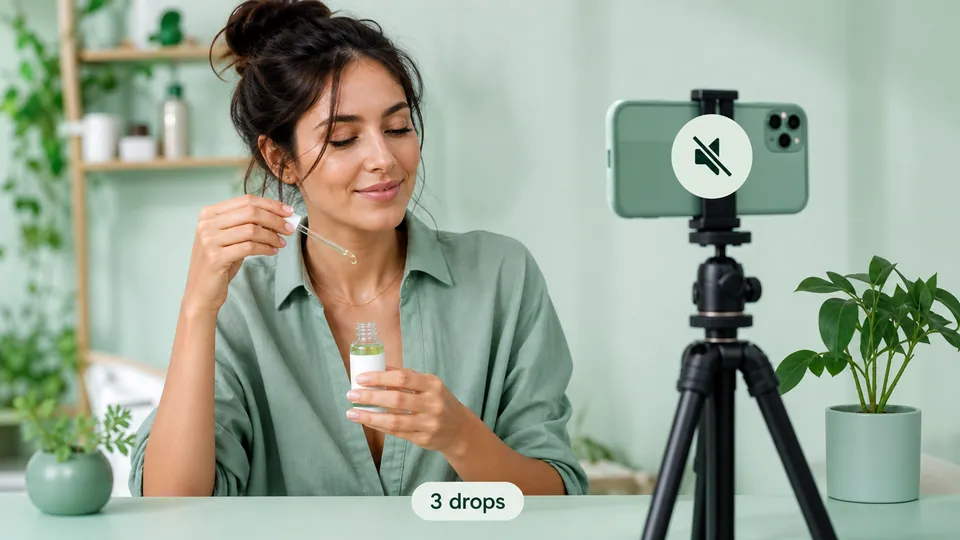
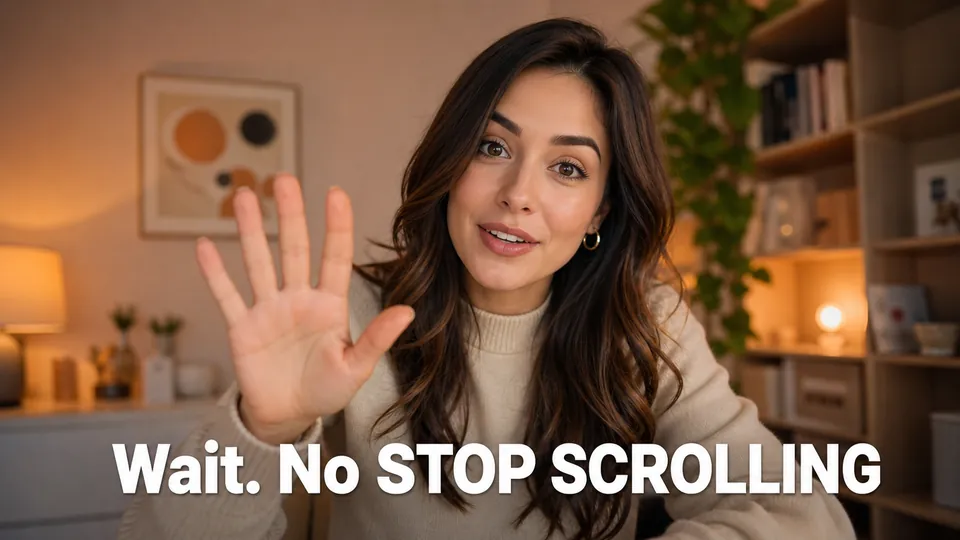
    On mute autoplay, the words are the retention device. Put short, high-contrast selling lines in the prompt and generate until they read clean on a phone. Topview makes the hook visible—it does not transcribe voiceover onto a timeline.

    Mute Viewers Can Follow: Readable On-Screen Lines, Not a CC Track

    People search an AI closed caption generator when they want “I can follow with sound off.” Topview puts wording and pacing in the prompt and generates a readable clip. What you get is burned-in on-screen text—not a YouTube-style CC track or an SRT file.

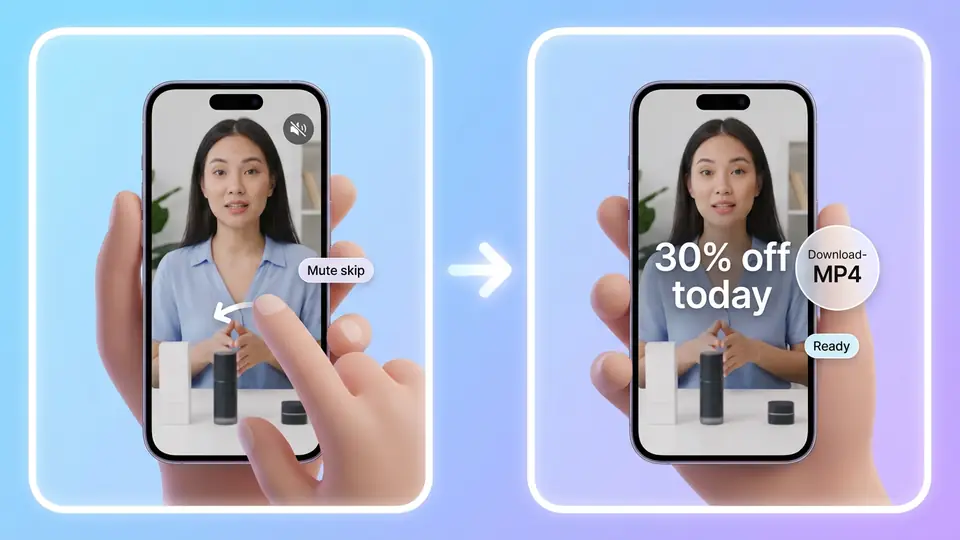
    Download and Post—The Words Are Already on Screen

    When the look is right, download a post-ready clip with the on-screen sentence, or continue in Topview Canvas. This page ships a burned-in clip for TikTok, Douyin, and Reels—it does not export SRT or a standalone subtitle file.

    Clearer On-Screen Lines, or a Whole New Language Version?

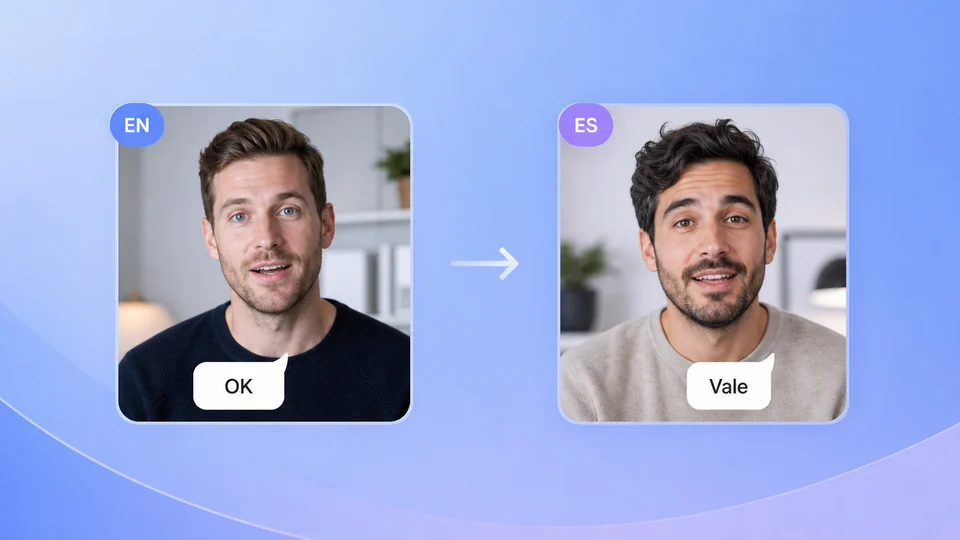
    Need clearer on-screen text in the original language? Stay here and write the selling line, then generate. Need the whole clip in another language with a local voiceover? Open the multilingual AI video page, rewrite the script, and generate again—that is a language remake, not captions only.

    Try One Sample First: Free AI Subtitle Generator

    Do not bet the calendar on a blurry first pass. Use free AI subtitle generator credits on your own selling line, preview on mute, and scale only when the direction is right—no subscription required to start.

    3 Steps With This AI Subtitle Generator: Selling Line to Post-Ready Clip

    1. 1

      Keep it short, high-contrast, and readable in one glance—put the on-screen words in the prompt. Do not upload a finished cut and wait for speech-to-text.

    2. 2

      Optionally add text, image, video, or audio references, pick ratio, duration, and resolution, and generate a clip with on-screen text.

    3. 3

      Watch it the way a mute scroller would. If the line misses, change the prompt and run again. Need a finer visual pass? Open Canvas.

    FAQs

    Yes. Write the on-screen sentence into the prompt and generate a mute-readable clip from text, image, video, or audio. Built for merchants who have a hook or a product still—not auto-captions on an existing file.

    Use free credits, write the on-screen sentence, set ratio, duration, and resolution, then generate. Preview on mute, check whether the selling point lands, then decide whether to scale—no subscription required to start.

    No. Topview does not turn voiceover into timed captions. You write the on-screen sentence in the prompt, then generate—the selling line is yours. This is not CapCut-style auto recognition.

    No. This page downloads a clip with the on-screen sentence. It does not provide SRT, VTT, or a standalone subtitle file. Soft captions for YouTube SEO are a different tool category.

    CapCut: finished footage → transcribe → timeline → burn in. Topview: no footage yet → on-screen line in the prompt → four inputs → a clip with text. If the line is wrong, change the prompt and run again, or open Canvas.

    No. What is readable is the burned-in on-screen sentence so mute viewers can follow the hook and selling point. No standalone CC track, no karaoke template library, and no word-level sync to voiceover.

    This page strengthens on-screen readability in the original language. To change language and remake a local voiceover, go to the translate-video page, rewrite the script, and generate again—that is a translation remake, not captions only.

    Turn One Selling Line Into a Mute-Readable Clip Today

    Start free. Write the hook, generate a clip with on-screen text, change one sentence and run again, or open Canvas. Prove mute readability first, then scale.

    Start free