

Topview
    • MCP/Skill
    • Plugin
    • API
    • Pricing
    1. Home
    2. Plugin
    3. Blender

    AI Ads

    AI Video AgentAI Ads VideoAI Product VideoAI UGC VideoURL to Video

    AI Avatar

    AI Avatar GeneratorProduct AvatarDesign My AvatarAI Lip Sync

    AI Video

    AI Video GeneratorDrama StudioAI Video Body SwapAI Video UpscalerAI Video Watermark RemoverTikTok Watermark RemoverSora Watermark RemoverSubtitle RemoverAI Motion ControlAI Lip SyncURL to Video

    AI Image

    AI Image GeneratorAI Face SwapAI Image Character SwapAI Image UpscalerAI InpaintAI Image Text EditorPhoto Angle EditorAI RelightingAI Product PhotographyAI Virtual Try-OnAI Storyboard GeneratorExtract Color PaletteImage to Prompt

    AI Voice

    VoiceoverAI Voice CloningAI Music Generator

    3D

    3D World Generator3D Shot Composer

    Use Cases

    AdvertisingAffiliate MarketingEcommerceDTC BrandsAI Live Stream

    Resources

    BlogAffiliate ProgramLearning CenterAlternativeAPI

    Company

    Topview StudioPrivacy PolicyTerms
    Topview

    © 2026 TOPVIEW PTE. LTD.

    Singapore: 20 Collyer Quay #20-03, Singapore 049319
    Los Angeles: 15970 Los Serranos CC Dr #251, Chino Hills, CA 91709

    Blender logo
    Blender
    ×
    Topview logo
    Topview

    Blender for Topview

    Your next creative workflow starts in Blender.

    Download coming soon

    Get started in three steps

    1. 1

      Download the .zip

      Download the plugin ZIP file.
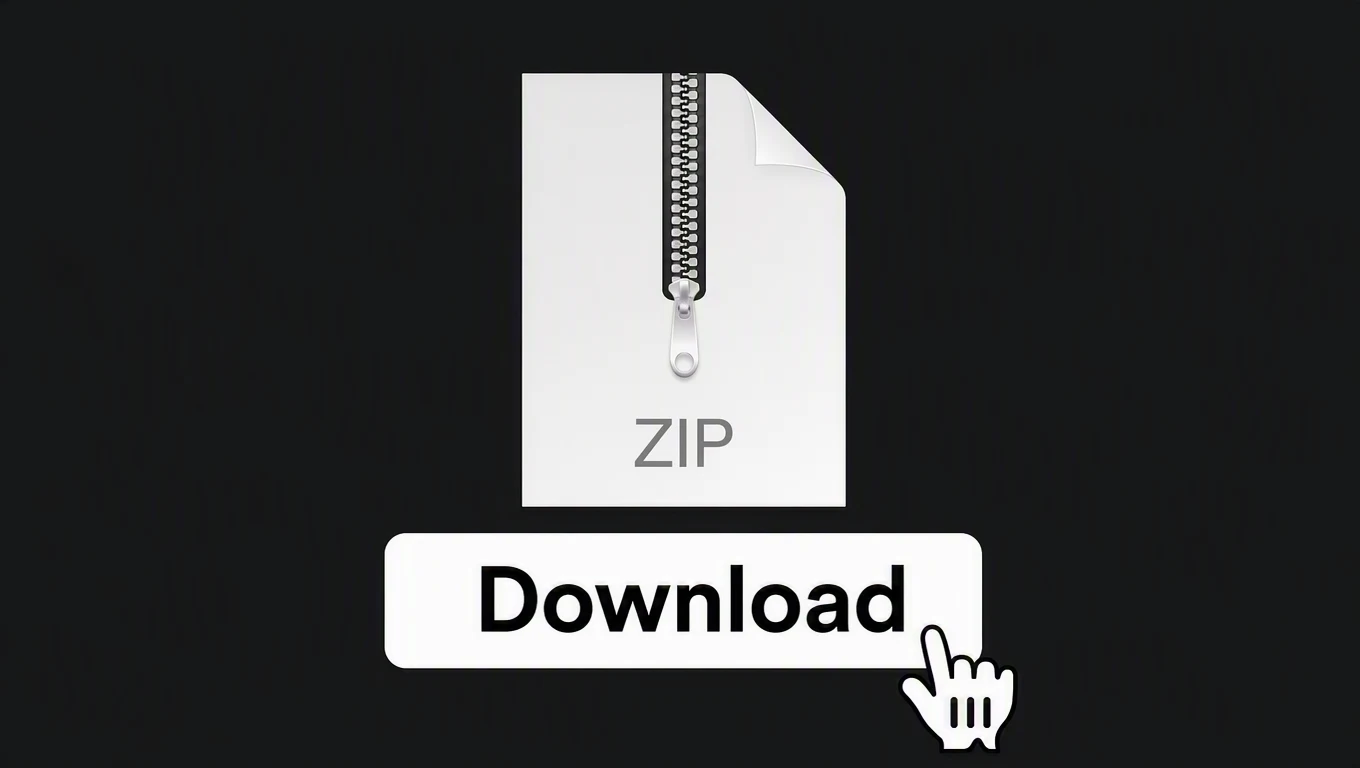
      Plugin download walkthrough
      Download preview
    2. 2

      Install in Blender

      Drag and drop the plugin ZIP file into Blender.
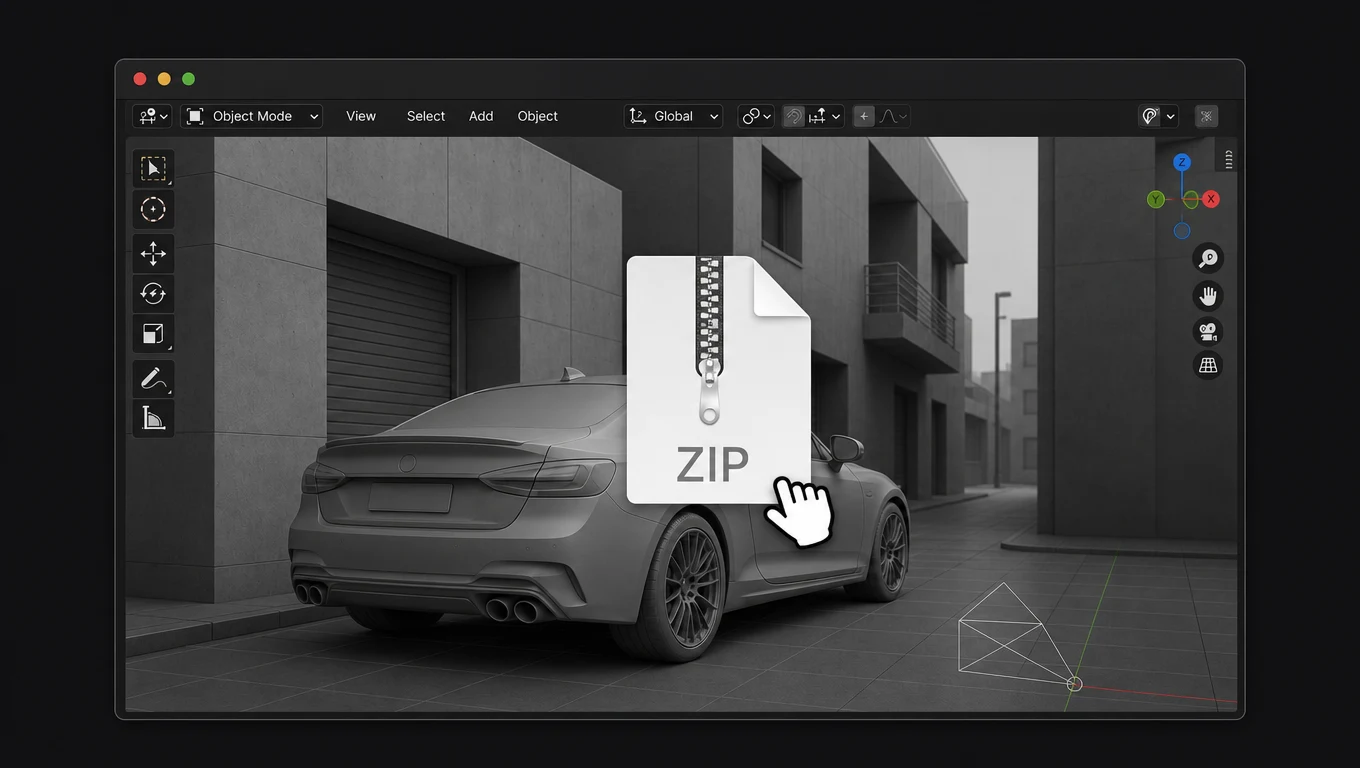
      Blender plugin installation walkthrough
      Installation preview

    From Blender to Topview

    What is the Topview Blender plugin?

    The Topview Blender plugin exports clay-render videos from Blender to Topview, where Seedance 2.5 turns them into cinematic videos. Keep your scene editable in Blender and refine it whenever you need another take.

    Plugin walkthrough

    See it in Blender

    Demo video coming soon

    Why use the Topview Blender plugin

    From clay render to finished video, in one workflow

    Export directly to Topview, create with an AI agent, and return to Blender whenever you want to refine the shot.
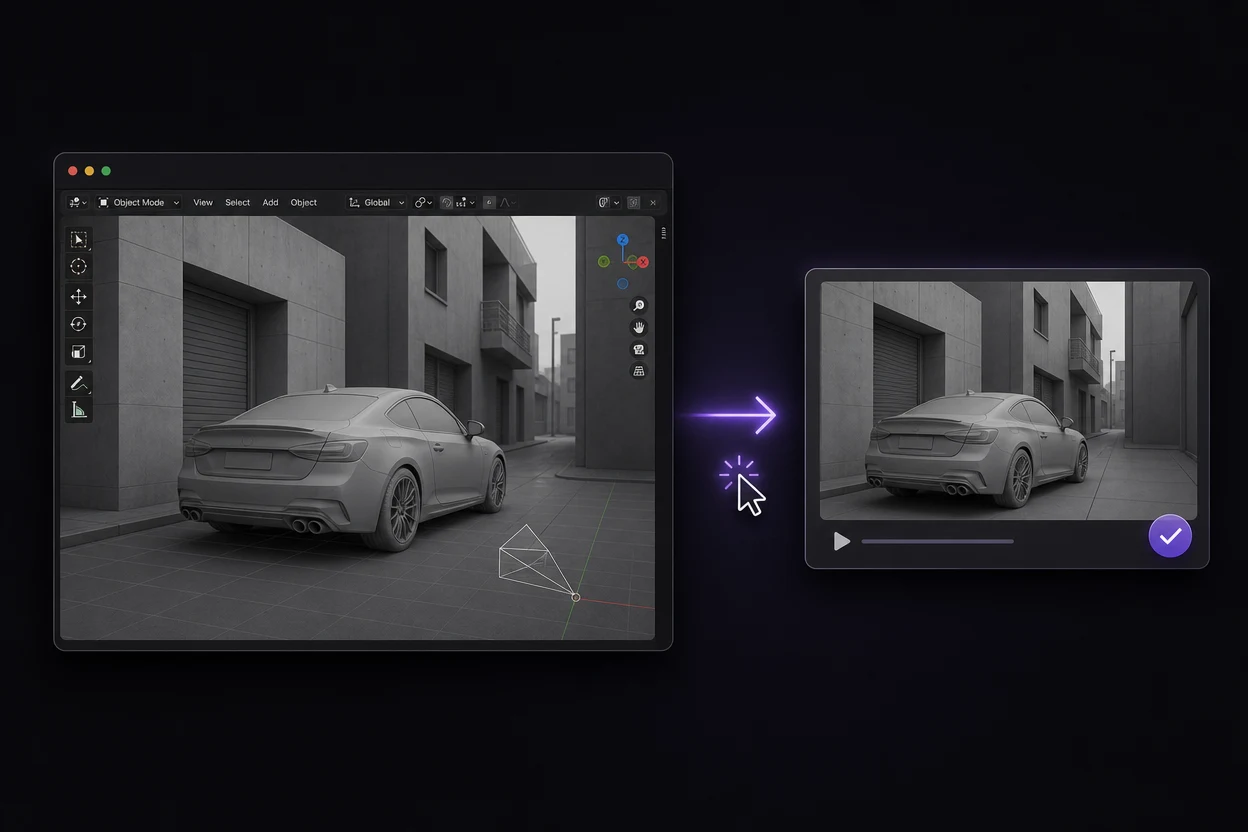
    Send your clay video to Topview in one click

    Send your clay video to Topview in one click

    Export a clay-render video from your Blender scene and send it directly to Topview with the plugin. Bring your scene layout and camera motion into your video workflow without a separate manual upload.
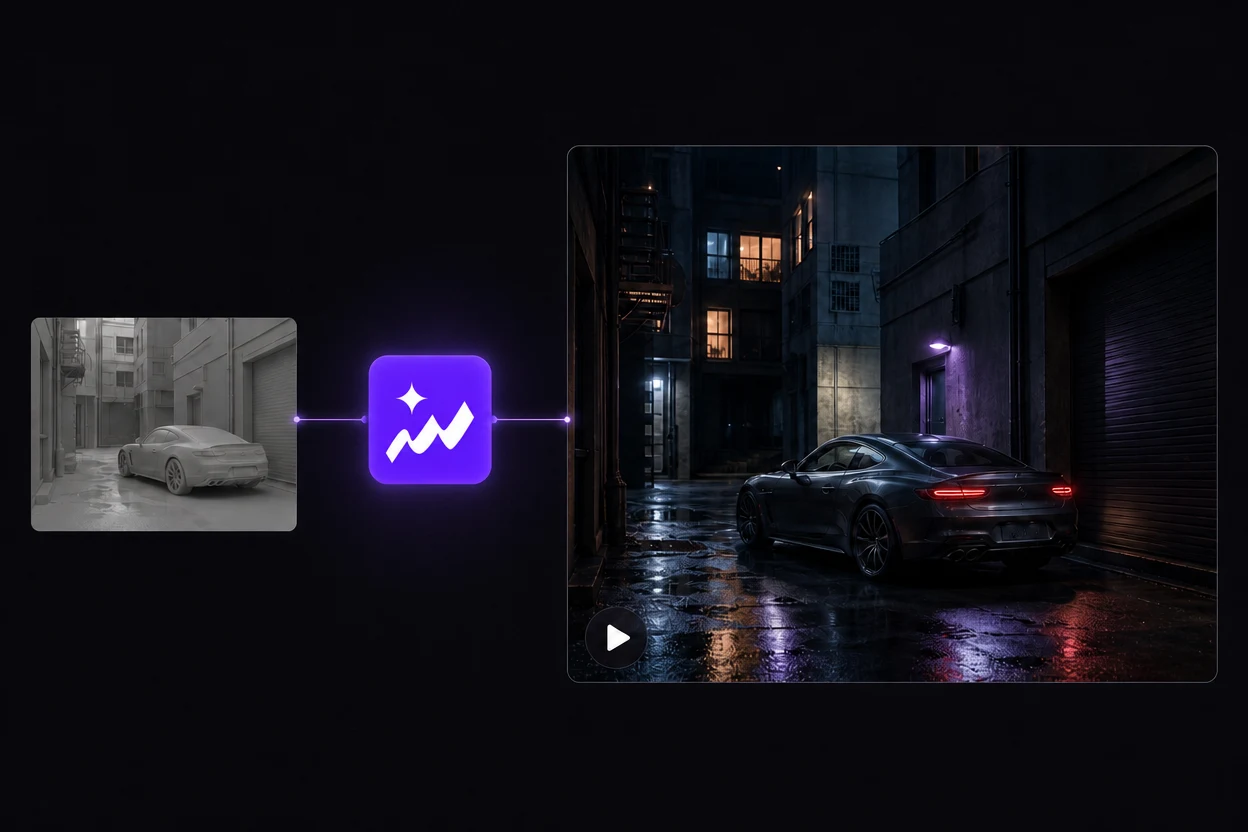
    Create the finished video with a Topview agent

    Create the finished video with a Topview agent

    Topview’s AI agent takes your clay video through to a finished video with Seedance 2.5. Describe the look you want and complete the creative process in one place.
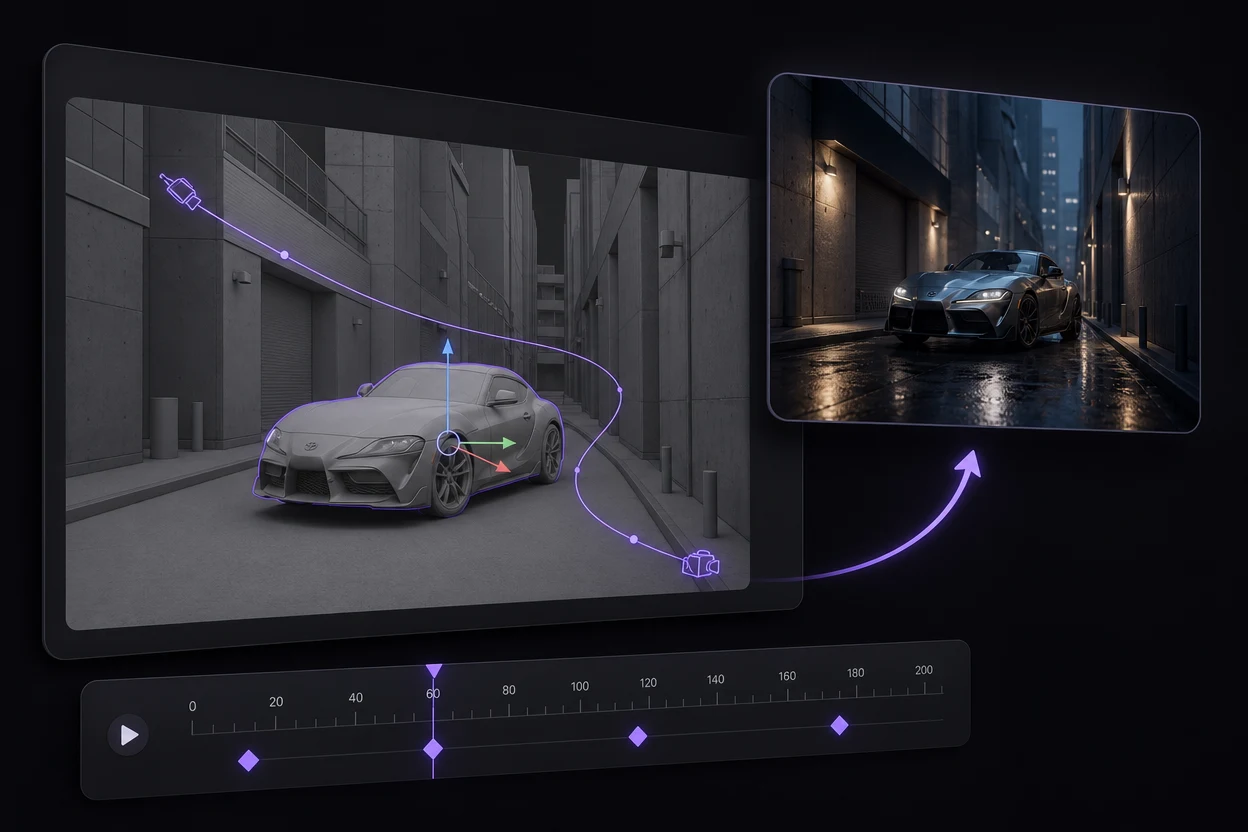
    Edit in Blender. Export again.

    Edit in Blender. Export again.

    Need a different camera move or scene layout? Adjust objects, camera paths or keyframes in Blender, then export a new clay video to Topview for another version.

    GPT-6 + Blender + Topview

    Take a GPT-6-assisted Blender scene further

    Use GPT-6 Astra to help develop a Blender scene, then review its objects and keyframed animation in Blender. Once the camera move works, the Topview Blender plugin carries your rendered reference into the video workflow.

    OpenAI’s GPT-6 Astra introduction includes a Blender modeling demonstration. Scene assistance is an optional starting point for this workflow; GPT-6 is not built into the Topview plugin.

    See OpenAI’s GPT-6 Astra demonstration

    An example scene brief

    Help me build a simple alley scene in Blender with editable buildings, a parked car and a camera that slowly moves forward before revealing the car. Keep the objects separate and put the camera motion on keyframes so I can revise the shot.

    1. 01

      Describe the scene

      Ask GPT-6 to help plan the objects, layout and camera animation for a specific shot.

    2. 02

      Review and adjust

      Check the scene in Blender. Refine geometry, object placement and keyframes before rendering.

    3. 03

      Send the clay video

      Export through the Topview plugin and import the reference into your Topview project.

    4. 04

      Develop the final look

      Use Seedance 2.5 in Topview to explore a cinematic treatment based on that reference.

    You can also build the scene yourself. The plugin imports the rendered video, regardless of how the Blender scene was created.

    Blender plugin FAQ

    It renders a video from your Blender scene camera or prepares an existing local video, then opens a browser flow to import it into Topview Board or Canvas. You can use that video as a reference for an AI-generated cinematic version in Topview.

    A neutral clay animation lets you work on the shot’s composition, object movement and camera timing before final materials and lighting. Use the clip to guide the video generation, and describe the visual treatment you want in Topview.

    Yes. Reopen the original Blender scene, edit the objects, camera or animation, and export a new reference video. The generated video is an output clip; the editable 3D source remains in Blender.

    AI video generation takes place in Topview. The plugin exports or prepares a video and imports it into your project; you choose Seedance 2.5 and configure the generation in Topview.

    Yes, if it is a working Blender scene that you can render. Review the scene and keyframes, export the camera animation with the plugin, then continue in Topview. GPT-6 is an optional scene-building aid, not a built-in feature or requirement of this plugin.

    Yes. The plugin has a Local Video option alongside Camera Render. Select an existing video, let the plugin prepare it, and use Upload to Topview to choose its destination project in the browser.

    The clay-render mode temporarily uses a uniform gray Workbench appearance and restores the saved render settings when it finishes or is cancelled. Keep your Blender project saved so you can return to the source scene and refine another version.

    The import flow transfers the rendered or selected video, not the editable .blend scene. Keep Blender open and use a browser on the same computer to complete the handoff. Your objects and keyframes stay in your local project.

    Build the motion in Blender. Finish the look in Topview.

    Start with a shot you can revise, then explore the cinematic treatment it deserves.

    View plugin setup
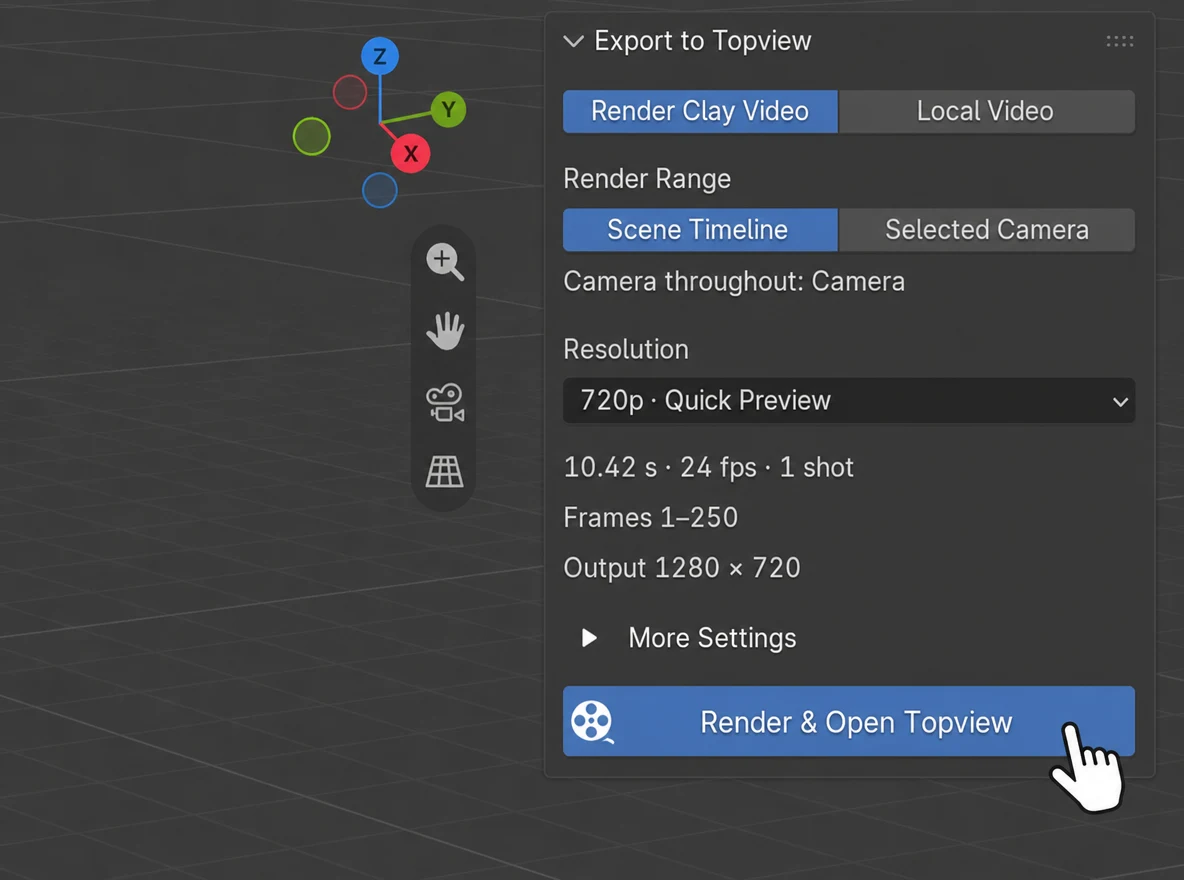
    Explore Seedance 2.5Read the Seedance 2.5 guide
    3

    Send to Topview

    Render your camera view, then upload the video to Topview.

    Topview plugin panel in Blender
    Plugin preview